Ask from anywhere. Ellie checks at home.
The patient portal is signed in on your computer. You’re not. Ask Ellie from your phone, say yes, and she reads it in your own Chrome and brings the answer back to the chat.
Comes with Eleplan Pro. Free to install. Edge, Brave, Opera, Arc and Vivaldi install it from the Chrome Web Store.
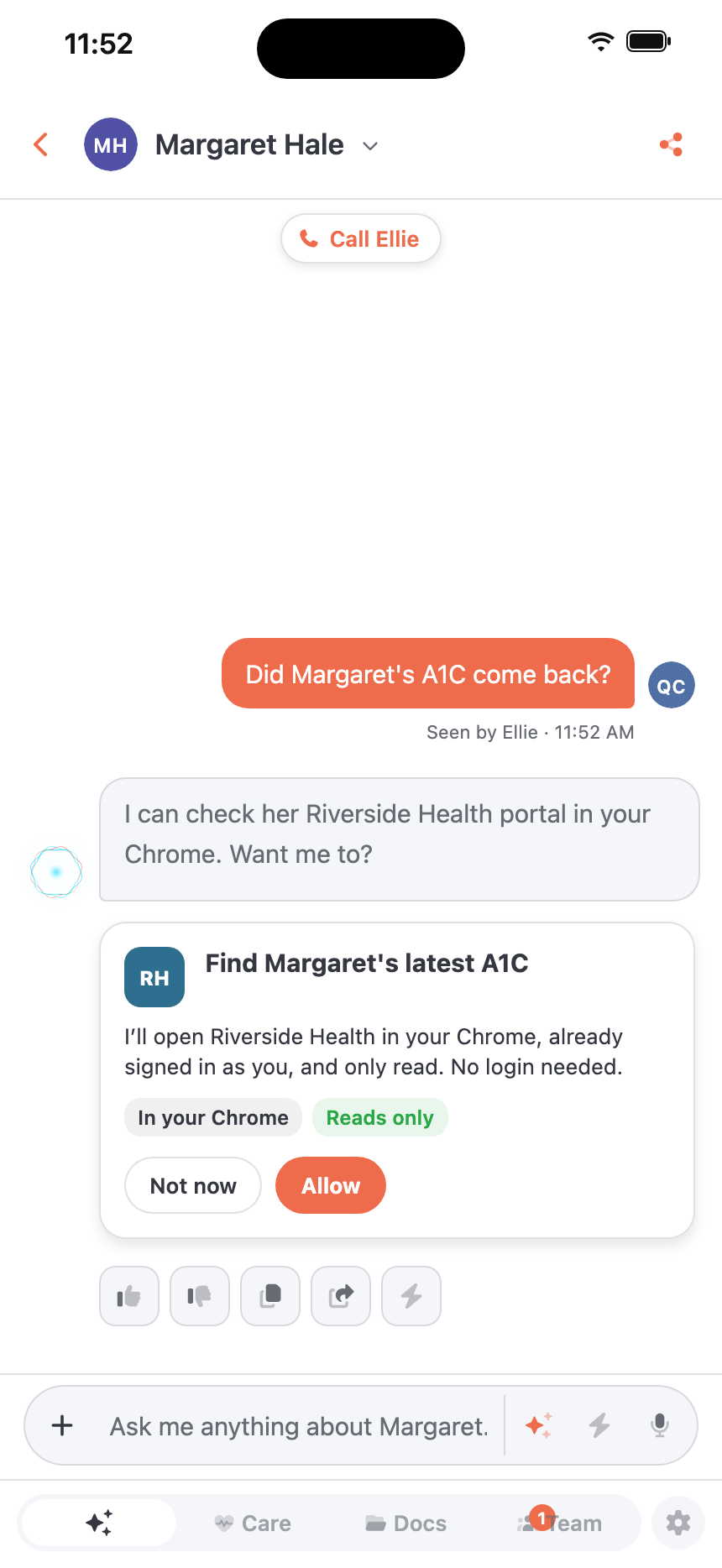

You ask. You say yes. Ellie finds it.
- 01
Ask from anywhere
“Did Mom’s results come back?” From your phone at work, or the app at your desk.
- 02
Say yes
Ellie asks before opening anything. Nothing happens in your browser until you tap Allow.
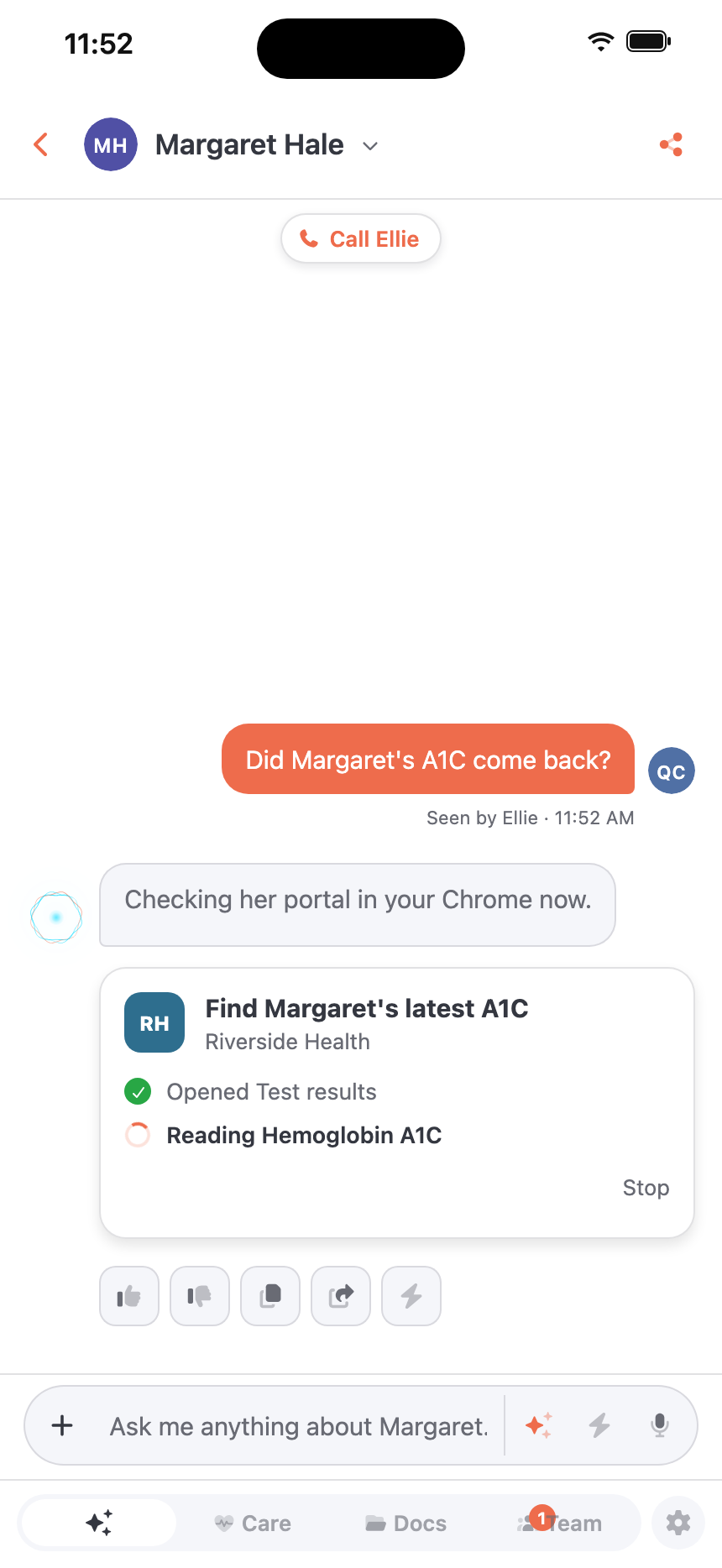
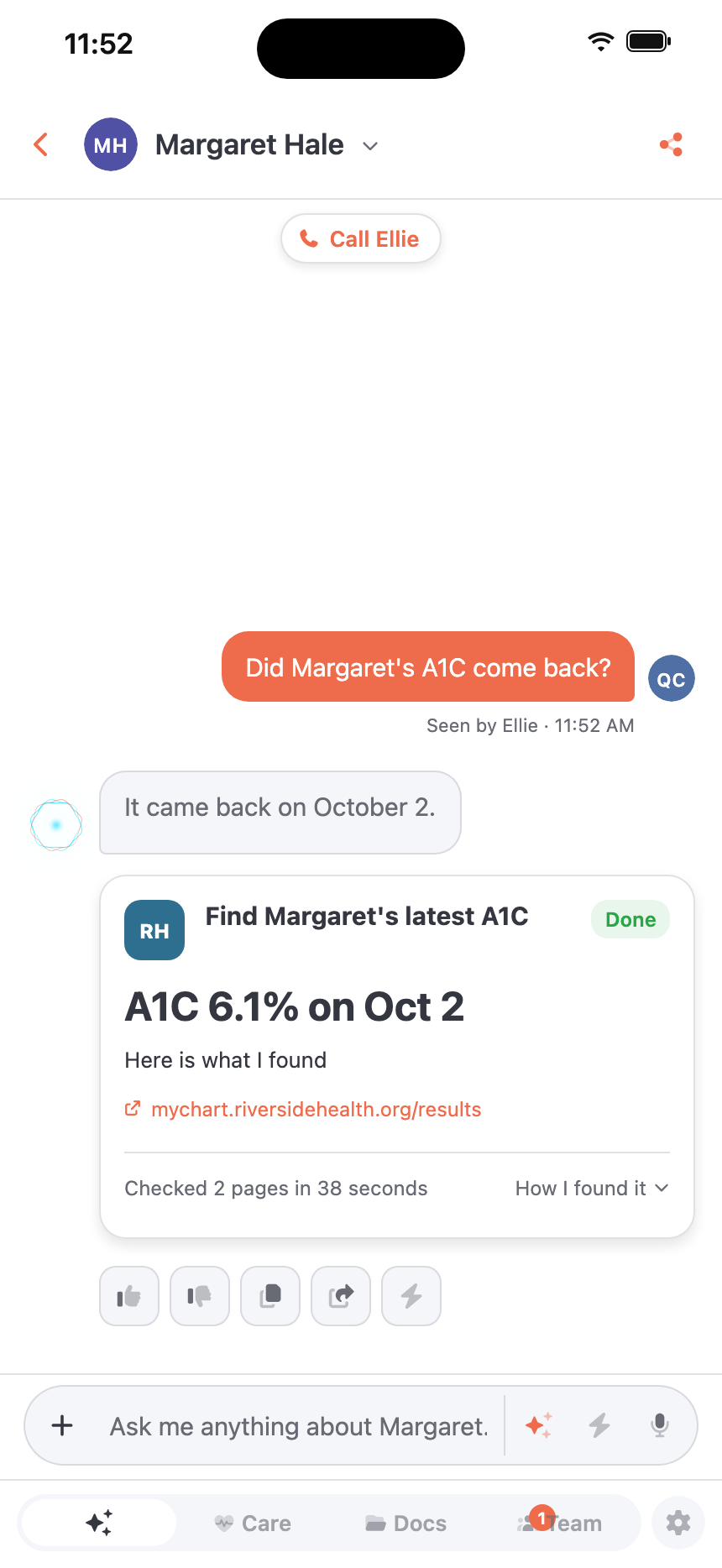
- 03
Get the answer
Ellie reads the page in your Chrome at home and brings the answer back to the chat, with where it came from.
Ellie’s chat, right beside the page.
Open Eleplan’s side panel and Ellie is there next to whatever you’re reading. Ask about a table, a medication list or a few lines you’ve selected, drop a file in, and keep the page in view while she answers.
Ask Ellie about it
On a site you’ve chosen, press the small tab beside a table, a list or text you’ve selected, then choose Ask Ellie about it. Her chat opens with that part of the page attached. You can take it off, and nothing goes to her until you press Send.
She reads it, you stay in charge
Ellie treats what’s on a page as information, never as orders. She can look at the plan and add to it, and anything more, like an email, a text or a call, waits for your next message.
One sign-in, one unlock
The panel uses the Eleplan sign-in your browser already has; Chrome just asks once to allow it. Locked with a PIN or a passkey? Unlock in a tab or in the panel, and the other opens too.
The rest of Eleplan, one tap away
Plan settings, billing and the rest of the app open in the Eleplan tab you already have, not a new one each time.
Save what you find.
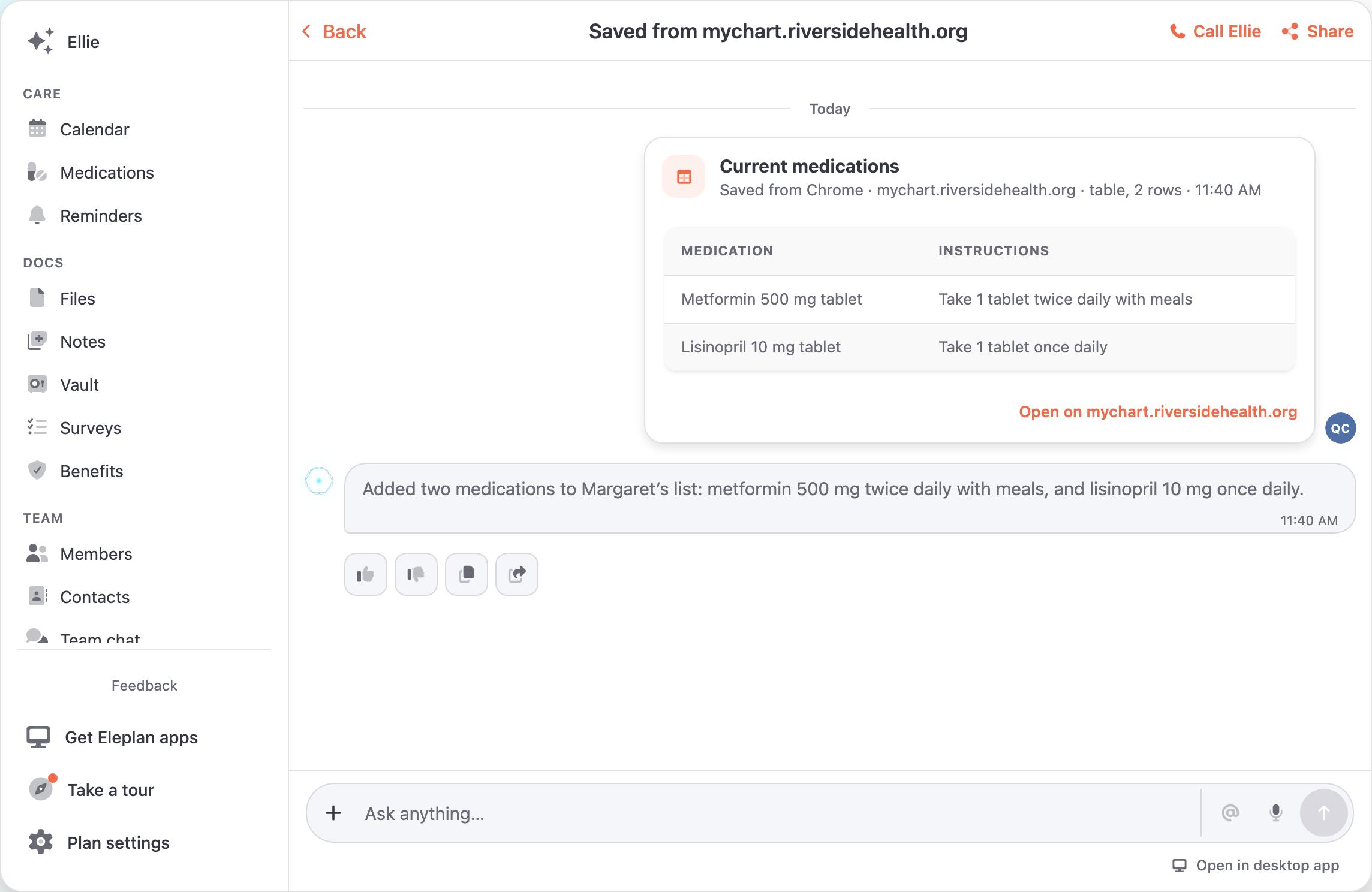
Reading a portal yourself? A table, a medication list or anything you select gets a small tab beside it that says what it saves. Press it, pick whose plan, and Ellie files each thing where it belongs. Or choose Ask Ellie about it to talk it over first.
Where it belongs
A medication goes on her medication list, a visit on the calendar, a phone number in contacts, and anything else in a note. Ellie tells you what she added.
Ellie only adds
Whatever a page says, it can’t get her to change or remove anything already in the plan.
Nothing leaves until you press Save
What you type into a form is never included. Come back later and what you saved is marked Saved to her plan.
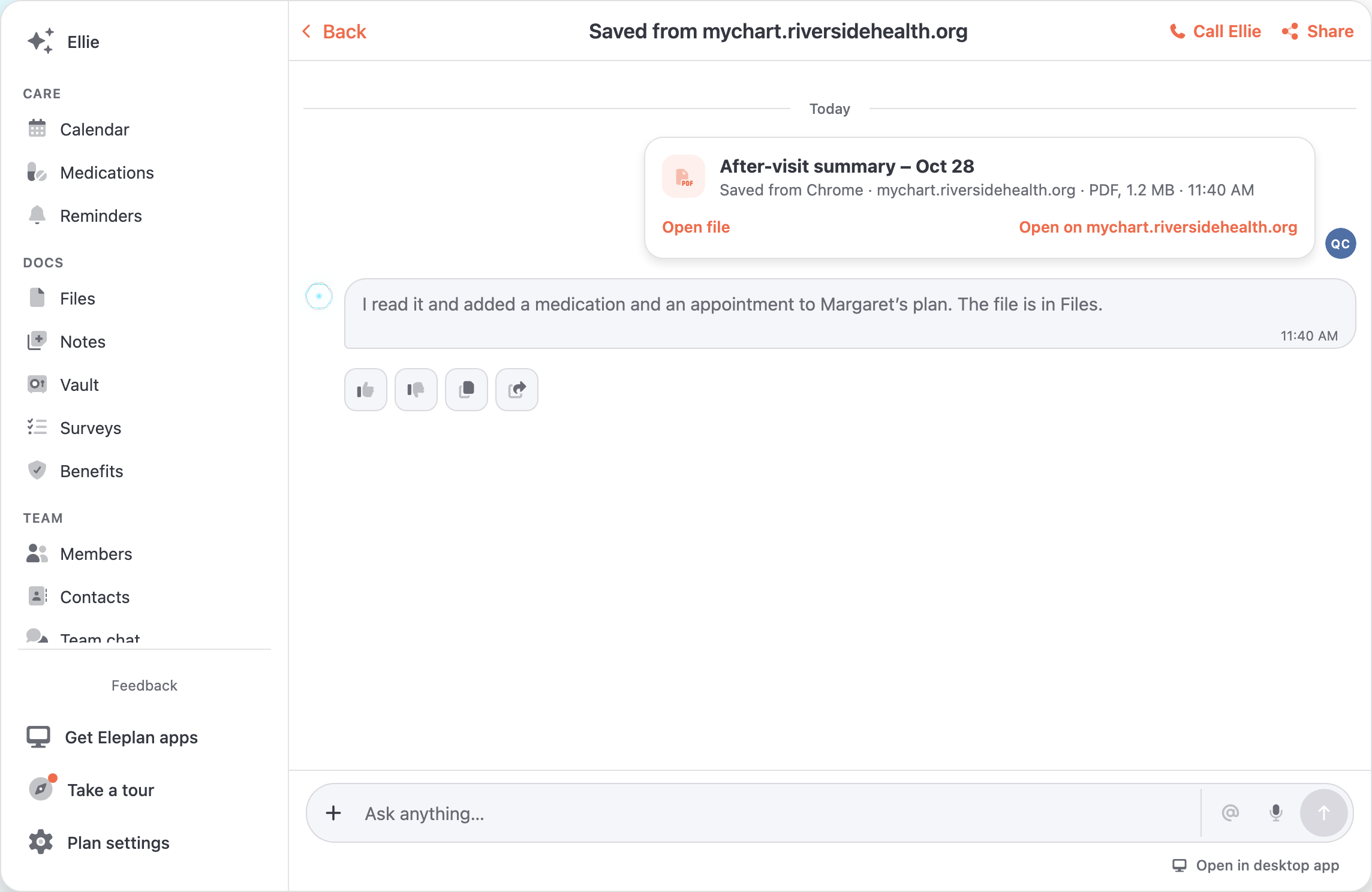
PDFs, photos and Word files.
Right-click a file or a picture on any site and choose Save to Eleplan, or drop one from your computer into the side panel. It goes into Files, Ellie reads it the way she reads anything you upload, and she tells you what she added.
The desktop app connects Chrome for you.
Install the Eleplan desktop app and it finds the browser on your computer that has Eleplan for Chrome, so there’s no hunting for a Connect button. It comes with Eleplan Pro.
- 01
Tap it in Settings
Open Settings in the desktop app and tap Eleplan for Chrome. It says which browser it found.
- 02
Your browser opens
The desktop app opens that browser, in the profile that has the extension, to Eleplan. If you’re not signed in there yet, it asks you to.
- 03
Say yes, once
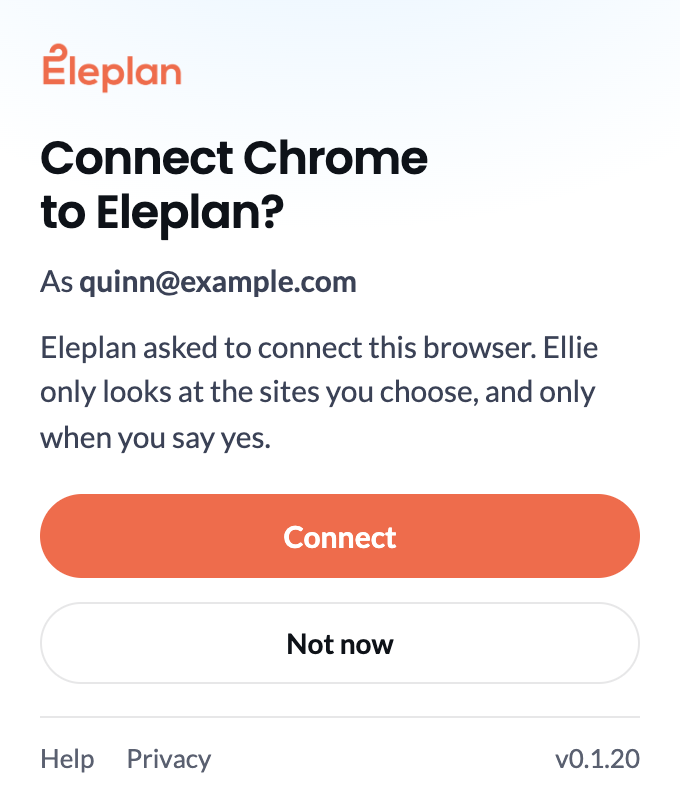
The extension’s own popup asks “Connect Chrome to Eleplan?” and names your account. Press Connect, and you’re set. No website can press it for you.
Health portals, ready on day one.
More than 400 health systems’ sites come built in, with the portal companies many practices use. Add anything else, from an insurer to a pharmacy, in one click on its page.
Your browser stays yours.
Looking, never doing
Ellie opens links and reads. Paying, submitting, sending and changing settings are switched off in the extension itself, whatever anyone asks.
Your sign-in stays put
Ellie uses the session your browser already has. It’s never copied to our servers, and the AI never sees a password or anything you type into a form.
Health sites, plus the ones you add
Health systems’ portals are built in, and one switch turns them off. Any other site you add yourself, with a click.
In plain sight
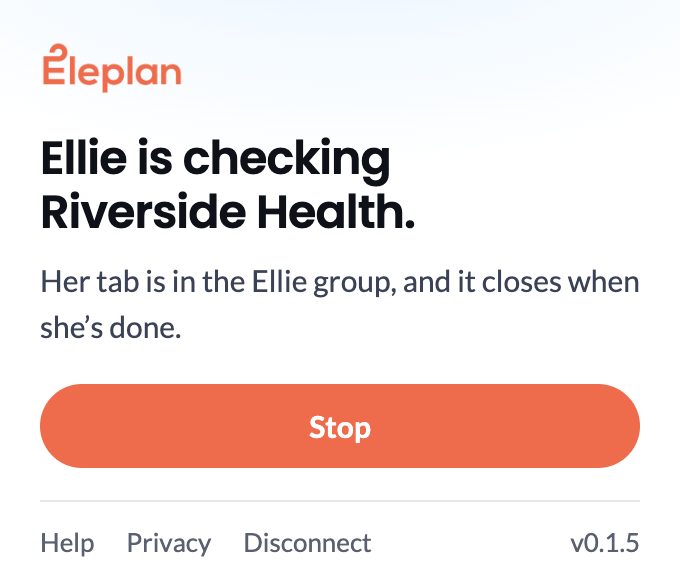
Ellie works in a tab of her own, grouped and labeled, with a pill on the page that says she’s reading. Stop is one click, and the tab closes when she’s done.
Good questions.
When can Ellie reach my browser?
When Chrome is open on a computer that’s awake. The extension can keep the computer from sleeping while Chrome runs, if you turn that on. If Ellie can’t reach it, she says so in the chat.
Does Ellie see my passwords?
No. Ellie only uses sites you’re already signed in to, and the extension never reads what’s typed into a form.
What gets sent to Eleplan?
The text and links of the pages Ellie opens for a check you said yes to, any part of a page you choose to save, and any part you ask her about. We keep her answers, what you saved and where it came from, and a short note of the steps she took, not the pages.
What happens when I save part of a page, or a file?
It goes to Ellie in the plan you pick. She adds each thing where it belongs, like a medication, an appointment or a contact, keeps anything else as a note, and tells you in the plan’s chat what she added. A file goes into Files first, and she reads it the way she reads an upload. She can only add, never change or remove.
Which sites can Ellie check?
More than 400 health systems’ sites are built in, along with the portal companies many practices use. You can add any other site yourself, and remove any site whenever you like.
How do I open Ellie’s chat in the side panel?
Click the Eleplan icon in Chrome’s toolbar and choose Open Ellie. The chat opens beside the page you’re on, for the plan you last had open, and the plan menu at the top switches plans. Ask Ellie about something on a page and it opens there too.
Do I sign in again in the side panel?
No. The panel uses the Eleplan sign-in your browser already has, and Chrome asks once to allow it. If you’re signed out, the panel shows an Open Eleplan button: press it, sign in in the tab that opens, and Ellie’s chat appears in the panel.
Which browsers can I install it in?
Eleplan for Chrome is built for Chrome 121 or later, on a computer. Edge, Brave, Opera, Arc and Vivaldi install the same extension from the Chrome Web Store.
Is it included in my plan?
It comes with Eleplan Pro. Installing the extension is free, and Ellie uses it on any plan that’s Pro, so a caregiver on a family’s Pro plan has it there too.
How do I stop it?
Press Stop while Ellie works. Disconnect in the extension or in Settings, or remove the extension, and Ellie can’t reach your browser at all.
Ellie already knows the plan. Now she can go and look.